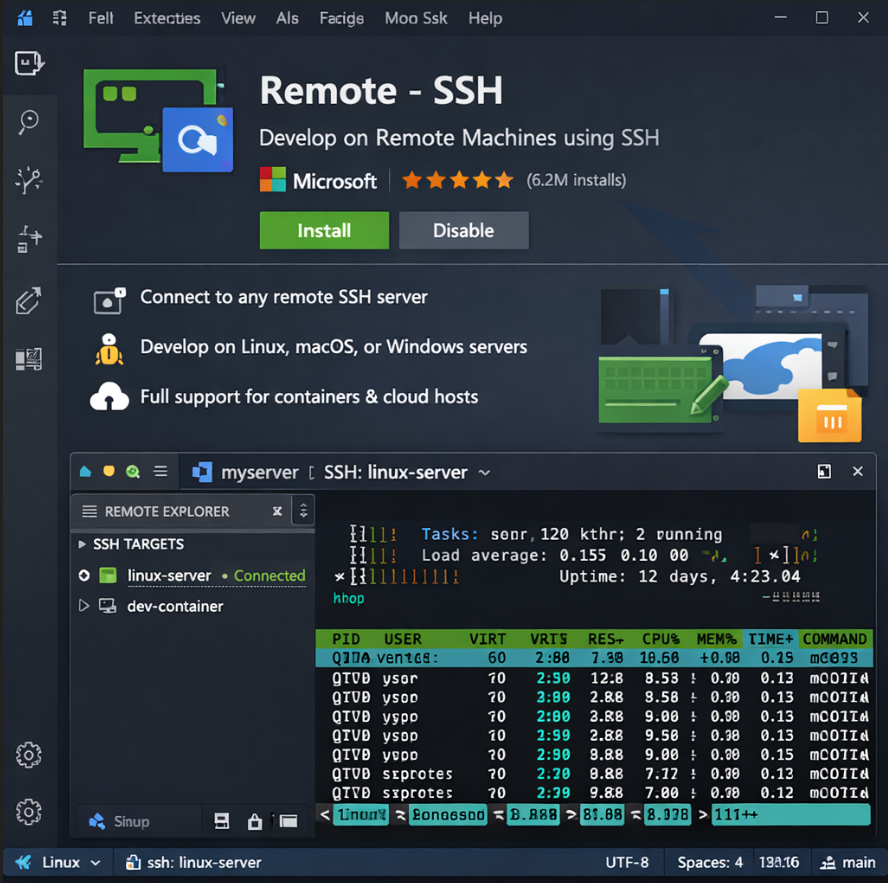
Passwordless SSH Setup for VS Code on Windows (for AlmaLinux)
A simple, 12‑year‑old‑level guide.
🎯 Goal
Connect to your AlmaLinux server from VS Code without typing your password every time.
This uses SSH keys.
1. Check if you already have an SSH key on Windows
Open PowerShell and run:
ls $HOME.ssh
If you see files like:
- id_rsa + id_rsa.pub
- id_ed25519 + id_ed25519.pub
Then you already have a key → skip to Step 3.
If the folder is empty → go to Step 2.
2. Create a new SSH key (only if needed)
In PowerShell:
ssh-keygen -t ed25519 -C "terry"
Press Enter for every question.
This creates:
- Private key → C:\Users\YOURNAME.ssh\id_ed25519
- Public key → C:\Users\YOURNAME.ssh\id_ed25519.pub
3. Copy your public key to the AlmaLinux server
Try the automatic method first:
ssh-copy-id -i $HOME.ssh\id_ed25519.pub username@SERVER_IP
Example:
ssh-copy-id -i $HOME.ssh\id_ed25519.pub [email protected]
If ssh-copy-id is not installed, use the manual method:
Manual method
- Show your public key:
cat $HOME.ssh\id_ed25519.pub
Copy the entire line (starts with ssh-ed25519).
SSH into your server normally:
ssh root@SERVER_IP
- On the server:
mkdir -p ~/.ssh echo "PASTE_YOUR_PUBLIC_KEY_HERE" >> ~/.ssh/authorized_keys chmod 600 ~/.ssh/authorized_keys chmod 700 ~/.ssh
Done.
4. Tell VS Code to use your SSH key automatically
Open this file on Windows:
C:\Users\YOURNAME.ssh\config
Add this block:
Host my-alma HostName SERVER_IP User root IdentityFile C:/Users/YOURNAME/.ssh/id_ed25519
Replace:
- SERVER_IP
- YOURNAME
Save the file.
5. Connect from VS Code without a password
In VS Code:
- Click the green >< icon (bottom-left)
- Choose “Connect to Host”
- Select “my-alma”
VS Code will now:
- Use your SSH key
- Skip the password
- Log in instantly
6. Test passwordless login in PowerShell
ssh my-alma
If it logs in without asking for a password, everything is working.
🎉 Finished
You now have clean, secure, passwordless SSH login from VS Code to your AlmaLinux server.